10 Best Robot Kits for Kids in 2026 (Tested by Age, Skill & Budget)
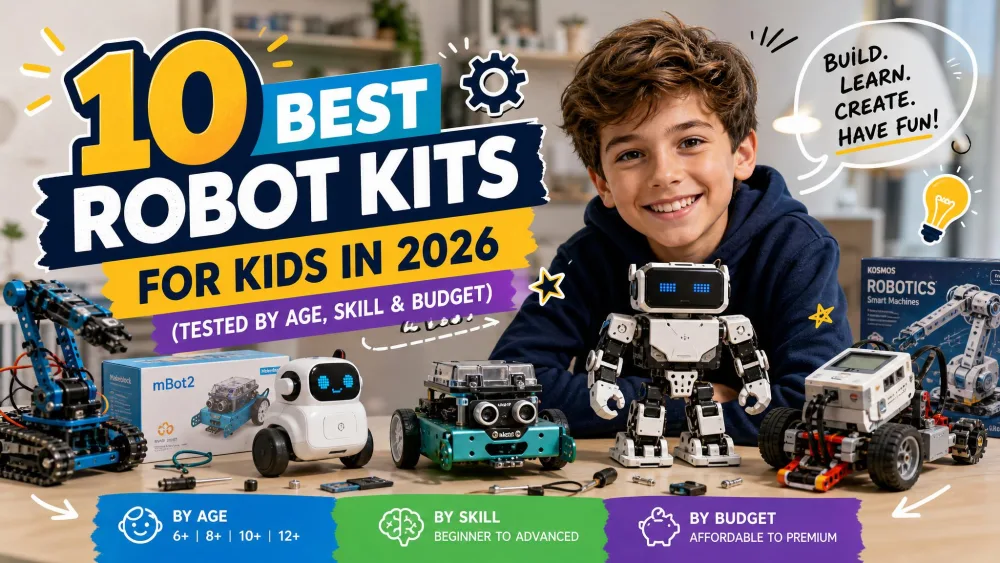
Robot kits are hard to shop for, because the label on the box tells you almost nothing about whether your child can finish the build. A kit stamped "ages 8+" can mean a screen-free tin-can project a second grader finishes before lunch, or an Arduino car that assumes your kid knows what a jumper wire does. The ten kits below span ages 5 to 14 and roughly $11 to $360, and we built, coded and broke them with our own kids rather than reading the packaging.
Between our older kids and the younger ones who trail along after them, these kits were built at the kitchen table over a season of evenings. The line that mattered most was who could work a kit alone. A five-year-old needs an adult reading the guide through a first Botley session, a seven-year-old can do most of an mBot build with someone sitting alongside, a nine-year-old builds that same robot largely unaided, and the Arduino car realistically wants a twelve- or thirteen-year-old at the screwdriver.
Session length varied just as widely. The no-assembly balls had kids driving within about fifteen minutes, the tin-can and solar kits were a single sitting of roughly half an hour to an hour, and the 606-piece dragon was a multi-evening build running three to five hours.
Quick Picks: The Best Robot Kits at a Glance
NoteEvery kit here was bought, built and coded in our own home before it earned a place on the list. We put them in front of kids at both ends of the age band, watched who needed help, and kept the ones still being played with weeks after the build session ended.
How We Tested and Chose These Robot Kits
We started with the kits that keep surfacing in parent groups, homeschool co-ops and gift guides, then narrowed to ten covering preschool through teen and screen-free through Python. Each was assembled at our kitchen table, coded far enough to prove the software works, then left out where kids could pick it up unprompted.
What stayed in rotation told us more than the first build session did. The open-ended kits lasted: Snap Circuits sets keep going for years and get expanded with the larger kits because the parts cross over, while build-once kits with nothing to program lost their pull as soon as they were finished. The ones that dropped out early did so for software reasons rather than broken parts, with Bluetooth that would not re-pair each session, an app that refused to run on an older tablet, and packaged project lists that got used up faster than anyone expected. A wide sibling spread can share one kit as long as no reading or screen is involved, which is why younger siblings can join a Botley course without reading a word.
We scored five things: how honest the age label is, how much of the build a child can do alone, whether the coding path leads anywhere beyond the app it ships with, how the parts survive being dropped, and what the kit teaches once the novelty fades. The approach owes a lot to the hands-on tradition the MIT Edgerton Center is known for, where the learning happens in the making rather than the manual. Prices move constantly, so every figure below is a band rather than a promise. Availability moves too, and one kit on this list has since been retired by its manufacturer, which is why it now sits last rather than in the middle of the ranking.
The 10 Best Robot Kits for Kids
1. Makeblock mBot: Best Overall Robot Kit for Kids
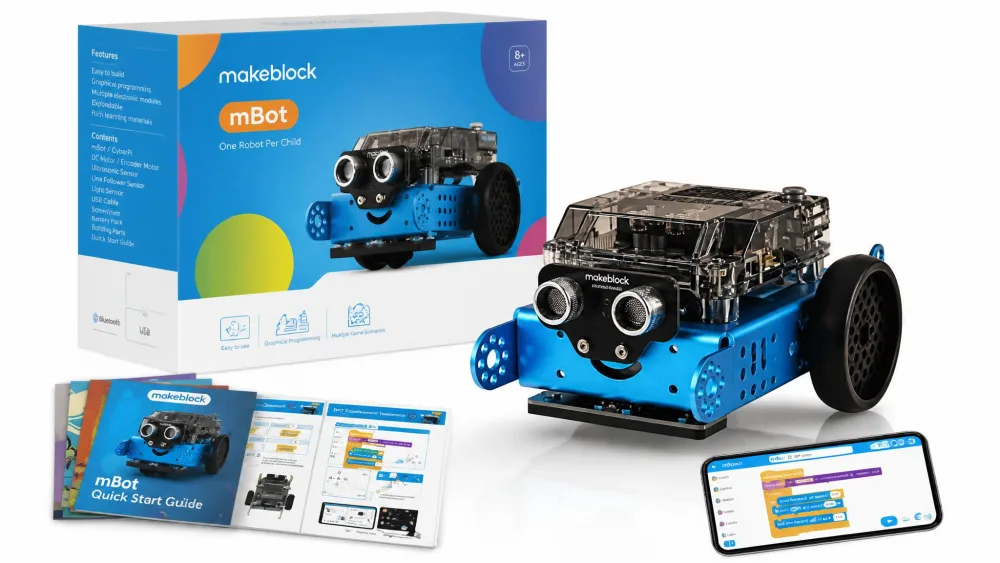
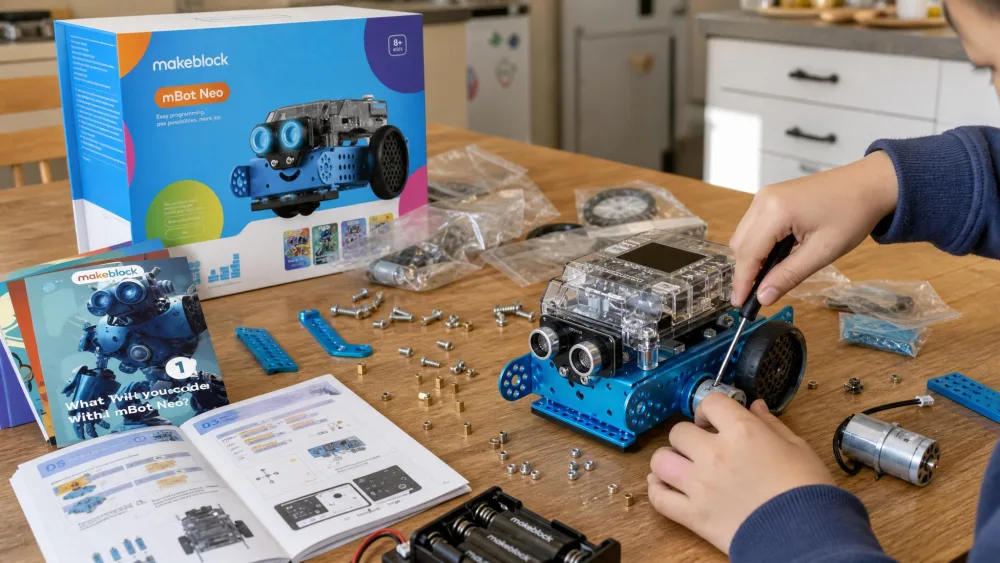
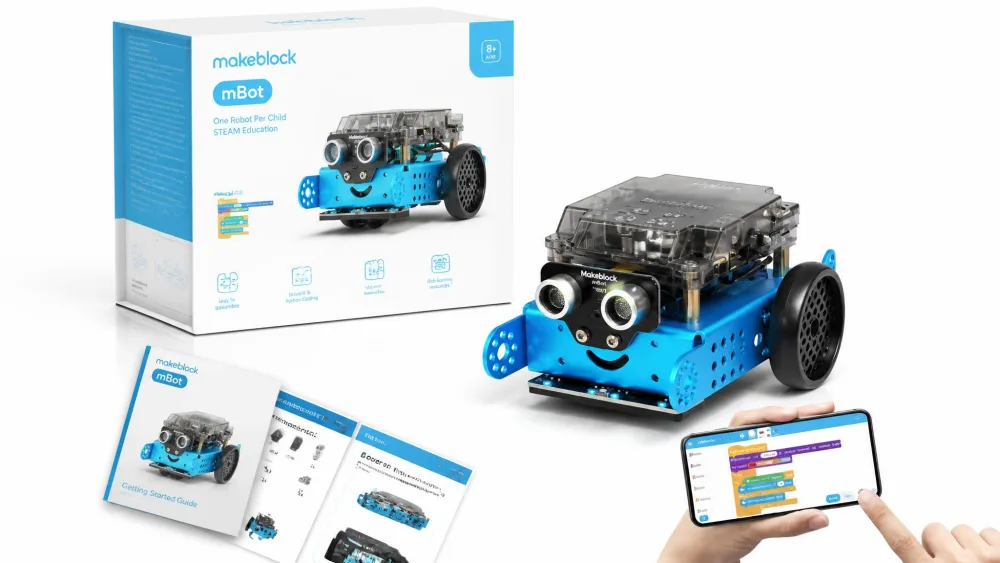
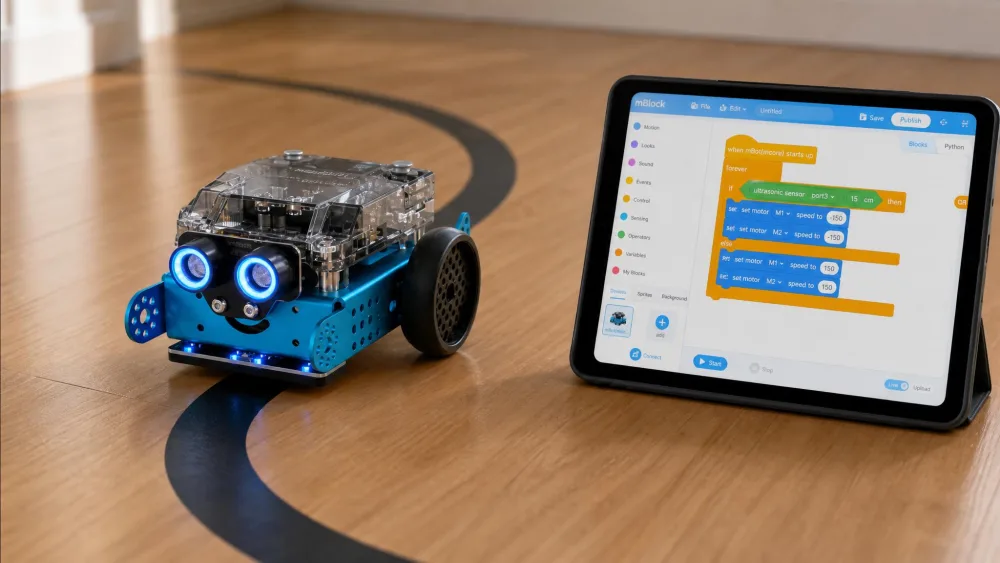
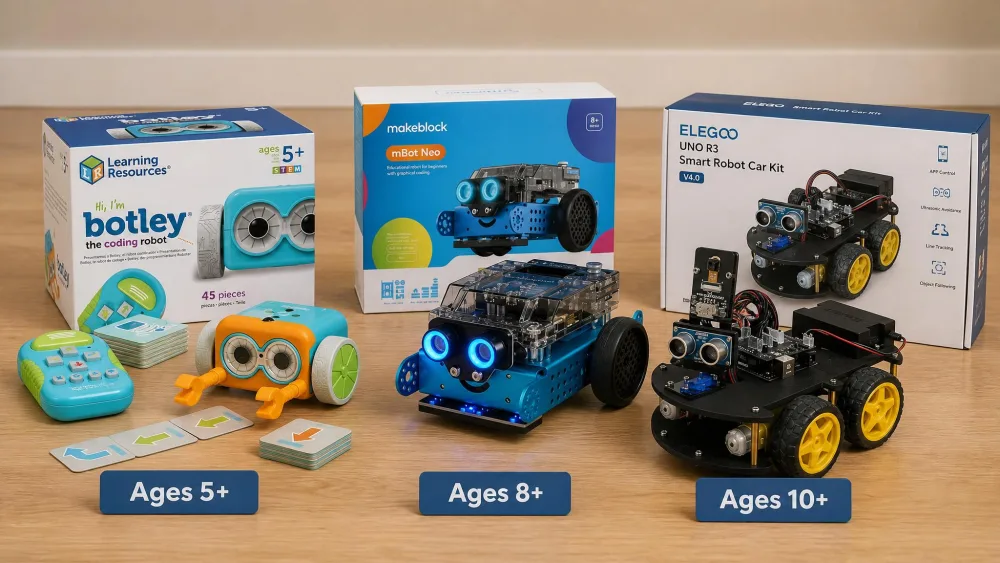
The Makeblock mBot is the kit we hand to families who want one purchase to last several years. It is designed for ages 8-12, and kids start in mBlock, built on Scratch-style blocks, then move to Arduino C on the same robot.
We started this build after dinner with our seven-year-old holding the screwdriver and an adult sitting beside him turning the sheet. Makeblock lists the build at 15 minutes. Closer to an hour is realistic with a seven-year-old doing most of the work, and by the time the ultrasonic sensor went on the front he had done nearly all of it himself. A nine-year-old builds the same robot largely alone. Three weeks later it began veering off its tape line, and the fix was not code at all: the motor mounts had shaken loose, and re-tightening them with the same screwdriver from the build put it straight again.
The Bluetooth link does not always reconnect on its own, and it struggles on anything but a smooth floor. If your child outgrows it, the Makeblock mBot2 is the step up, aimed at ages 8-14 with Python alongside Scratch and up to 5 hours of playtime per charge.
Pros
- Metal chassis survives real household abuse
- Block coding to Arduino progression in one robot
- Connects to 500+ Makeblock parts and is LEGO-compatible
Cons
- Motor mounts loosen and need re-tightening
- Bluetooth needs re-pairing most sessions
- Poor traction on carpet and rough floors
2. Sphero Mini: Best for Learning to Code (Ages 8+)
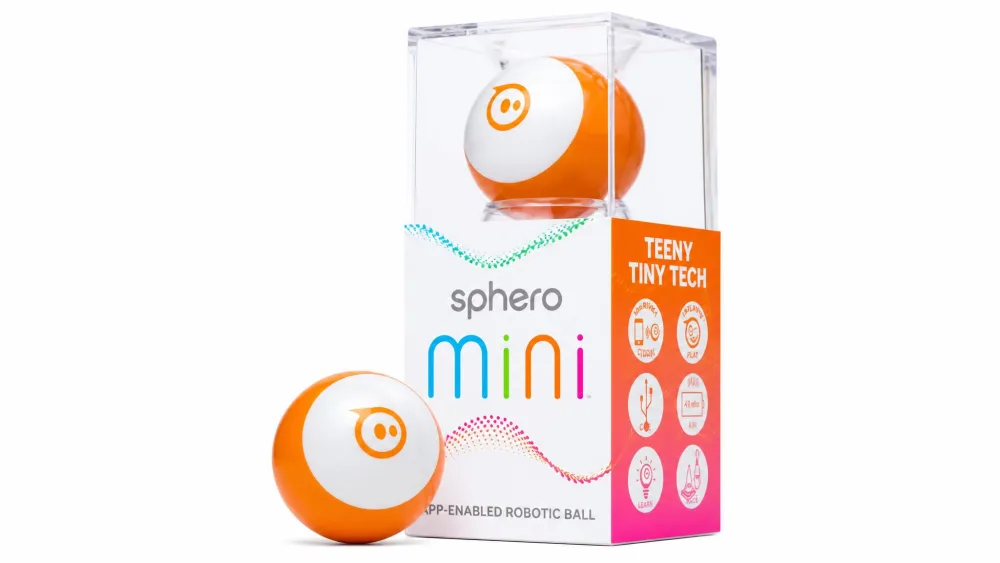
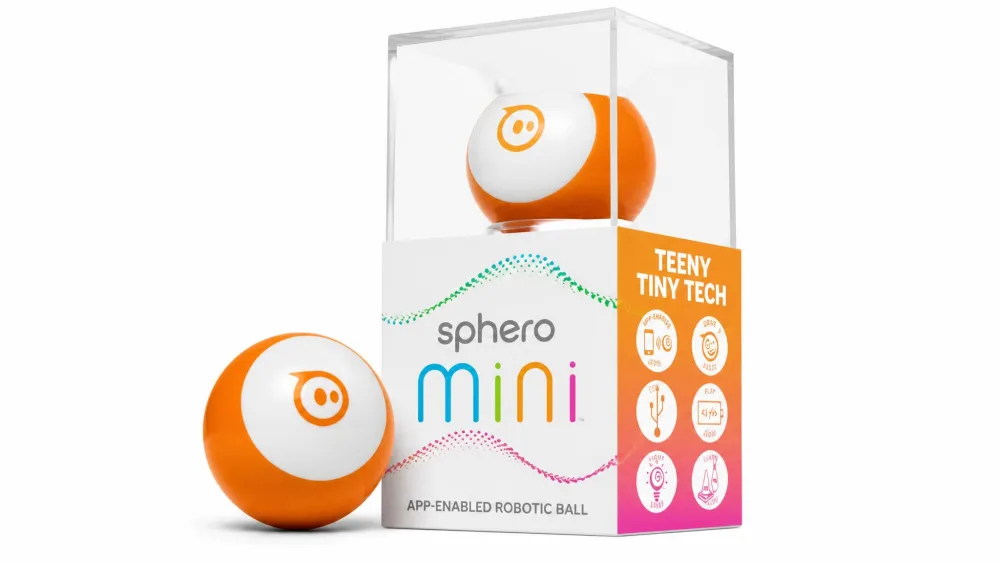
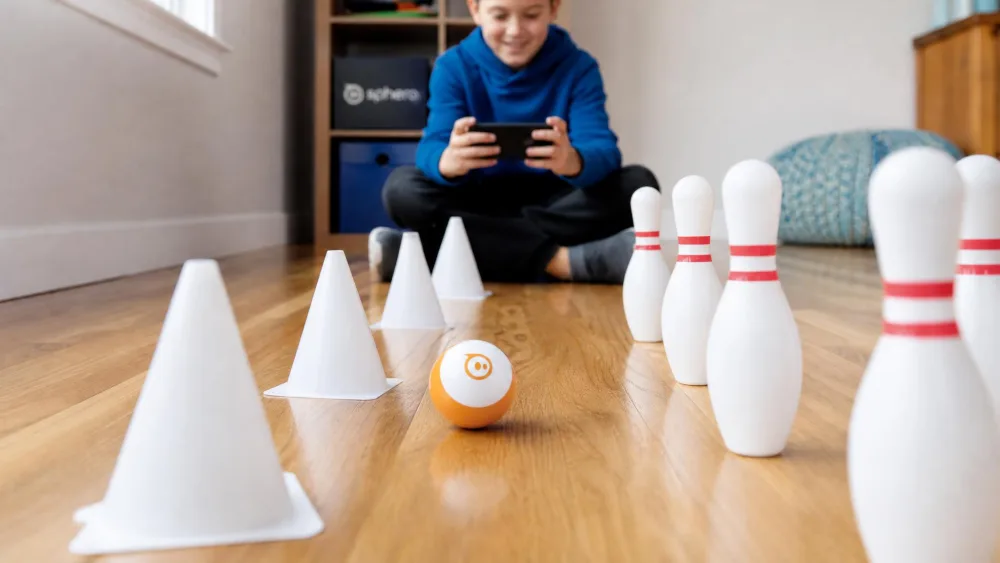
Where the mBot asks for an evening with a screwdriver, the Sphero Mini is the fastest route from box to first line of code. It is a robot ball about the size of a ping pong ball, rated ages 8 and up, and there is nothing to build: charge it, install the free Sphero Edu app, and kids are driving within about fifteen minutes. The app offers Draw, drag-and-drop blocks, or JavaScript, which is a clean on-ramp from doodling a path to writing text code. The 3 traffic cones and 6 bowling pins in the box did more for engagement than the app's own games, because the kids kept building their own courses and racing each other through them.
Battery life is the honest weakness. Sphero claims about an hour per charge, but real run time lands under that once kids drive it hard, and recharging takes longer than the play it buys, which is a problem when siblings are waiting a turn. The shell is thin enough that a stepped-on Mini is a dead Mini, and it stalls on thick carpet.
Pros
- No assembly, so coding starts the same day
- Three coding modes from drawing to JavaScript
- Cones and pins prompt self-directed games
Cons
- Under an hour of play per long charge
- Fragile shell and easy to lose
- Bluetooth drops at short range
Bottom Line
If the goal is coding rather than building, the Sphero Mini gets a child writing real programs faster and cheaper than anything else here.
3. Learning Resources Botley the Coding Robot: Best for Young Kids (Ages 5-7)
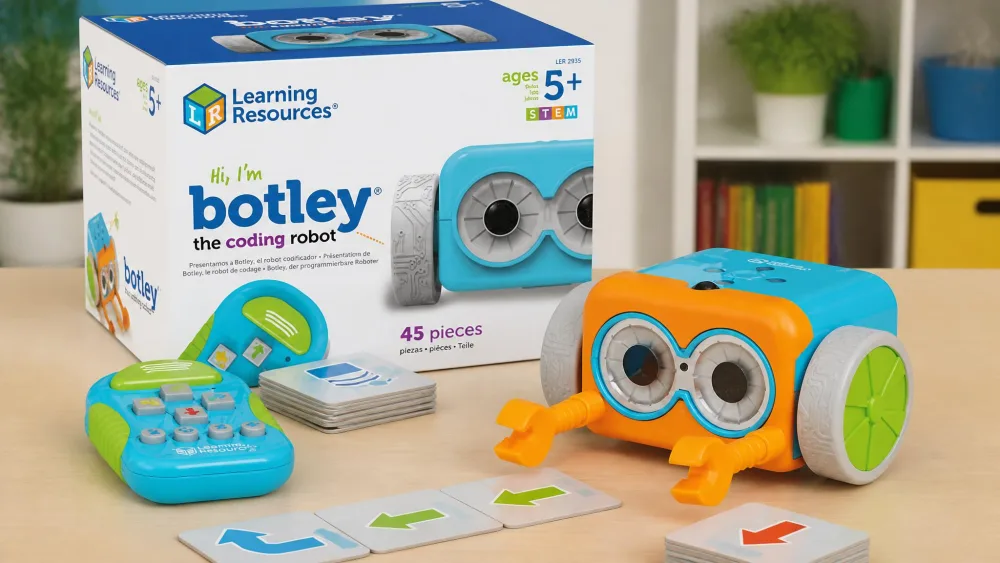
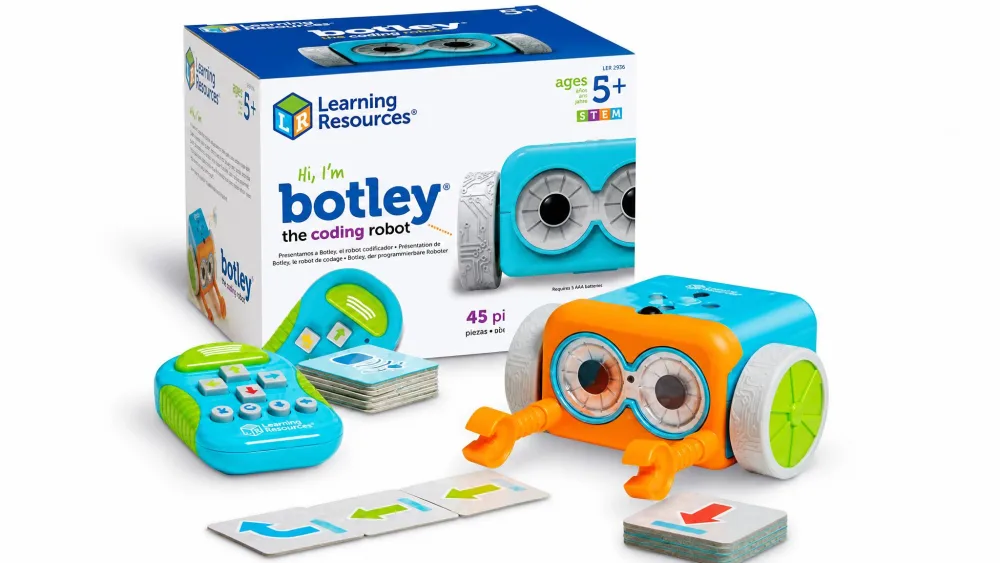
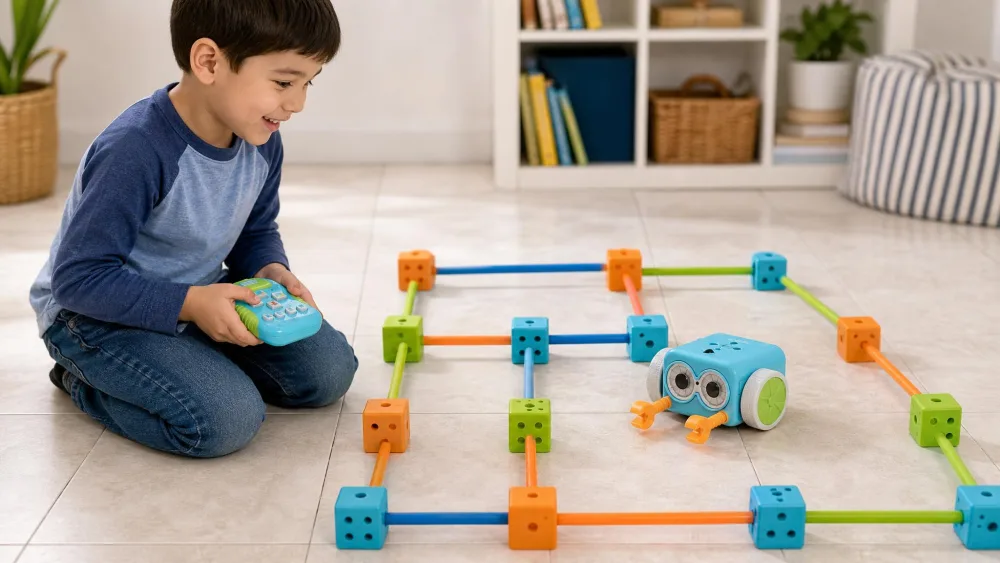
Both Sphero robots need a screen in the room. Botley the Coding Robot needs none at all: no phone, tablet, app or Bluetooth. Our five-year-old built her first program lying on the tile floor with the handheld remote, pressed go, and walked beside the robot as it crossed a maze made from the cubes and rods in the 77-piece activity set. She could not read a single word on the remote and it did not matter, which is why the younger siblings kept taking turns after she lost interest.
Botley 2.0 is 78 pieces with 16 interactions and adds 45-degree turns to the original's 90-degree steps. It is not usable out of the box: batteries go in behind screws, and stickers have to be applied first. It needs 5 AAA batteries plus a Phillips screwdriver. On carpet the wheels slip, so it drifts off a straight line and undershoots turns, and hard flooring is worth the move. For ages five to seven this is still the first coding robot we would buy, because it turns an abstract idea into something a child can walk alongside.
Pros
- Completely screen-free coding for ages 5-7
- No reading required, so younger siblings can play
- Physical mazes make the sequence visible
Cons
- Needs 5 AAA batteries and a screwdriver before first use
- Drifts and undershoots turns on carpet
- The 2.0 generation is less reliable than the original
4. Sillbird STEM 12-in-1 Solar Robot: Best Screen-Free Solar Kit
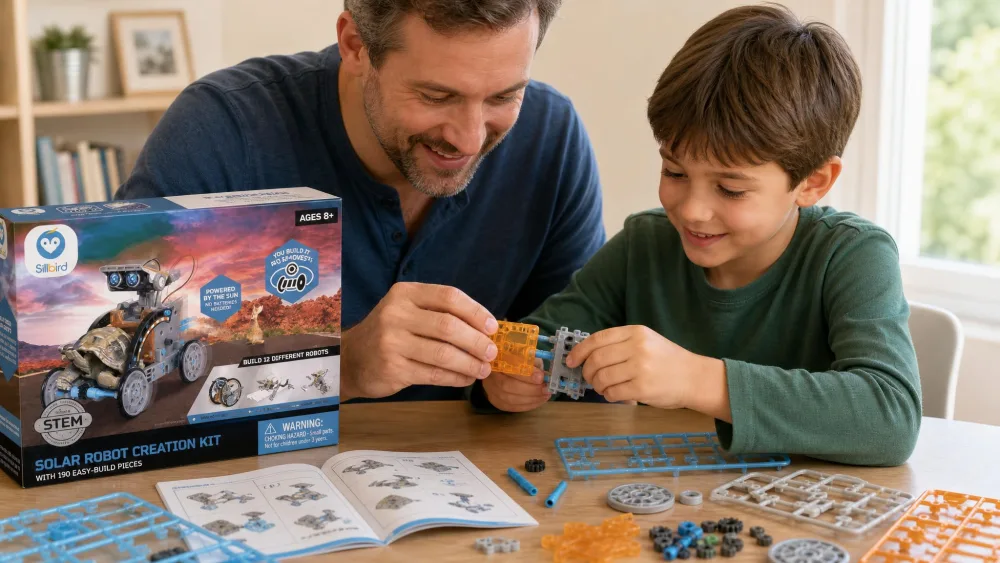
This is the only kit on the list that broke while we were testing it. The hull cracked along a seam during an ordinary afternoon of play, and two of the small connector pegs chipped off when a model was taken apart to be rebuilt as the next one. Before that, the build itself had already needed an adult: the gearbox is genuinely fiddly, the parts have to be trimmed off the sprue first, and an eight-year-old cannot get the gears seated without a second pair of hands.
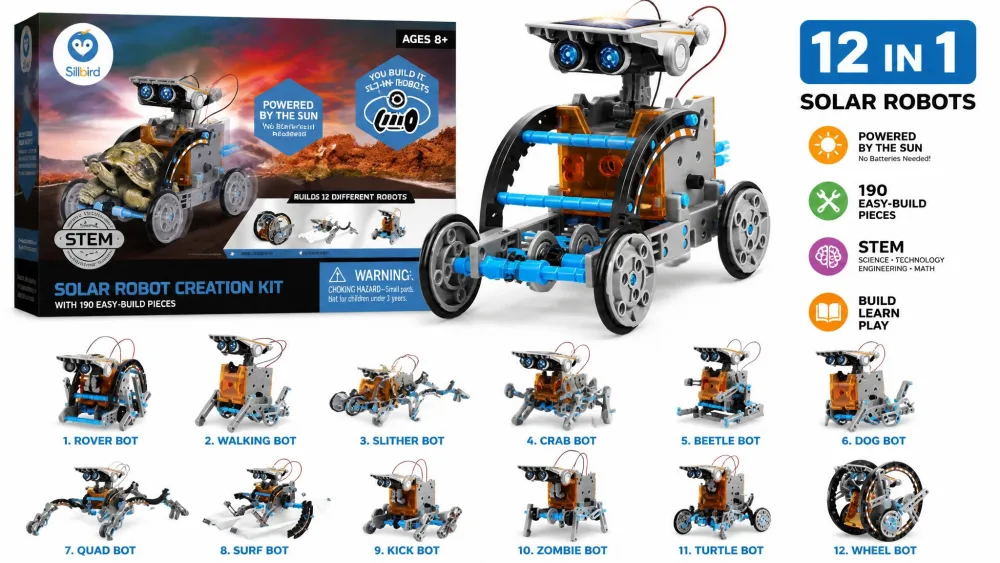
That is the honest frame for the Sillbird STEM 12-in-1 Solar Robot, which suits a child who wants to understand how something moves rather than tell it where to go. Rated ages 8-13, it is 190 parts building 12 models at graded difficulty, powered by a solar panel outdoors or a strong flashlight indoors. There is no coding of any kind, and at around $20 that is a fair trade for a lesson in gear ratios and drive trains. The pleasure sits in the building session with a parent rather than the play afterwards, and some units never move in solar mode even in direct midday sun, so treat it as a project rather than a toy and it earns its price.
Pros
- Twelve different models from one $20 box
- Teaches gearing and solar power with no screen
- Graded difficulty stretches across a wide age range
Cons
- Fragile plastic, with cracked hulls and chipped pegs
- Gearbox assembly needs an adult
- Nothing to control or program once built
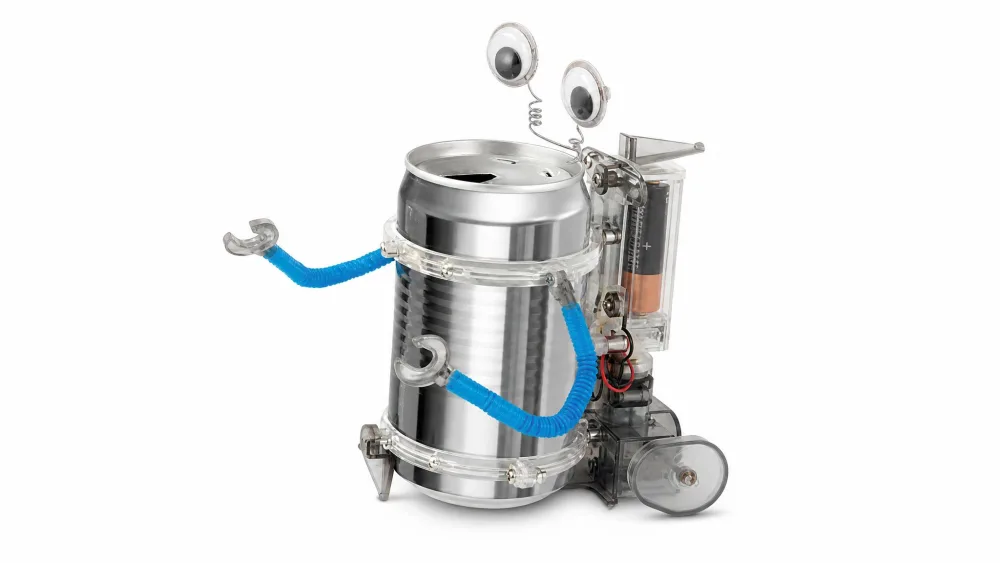
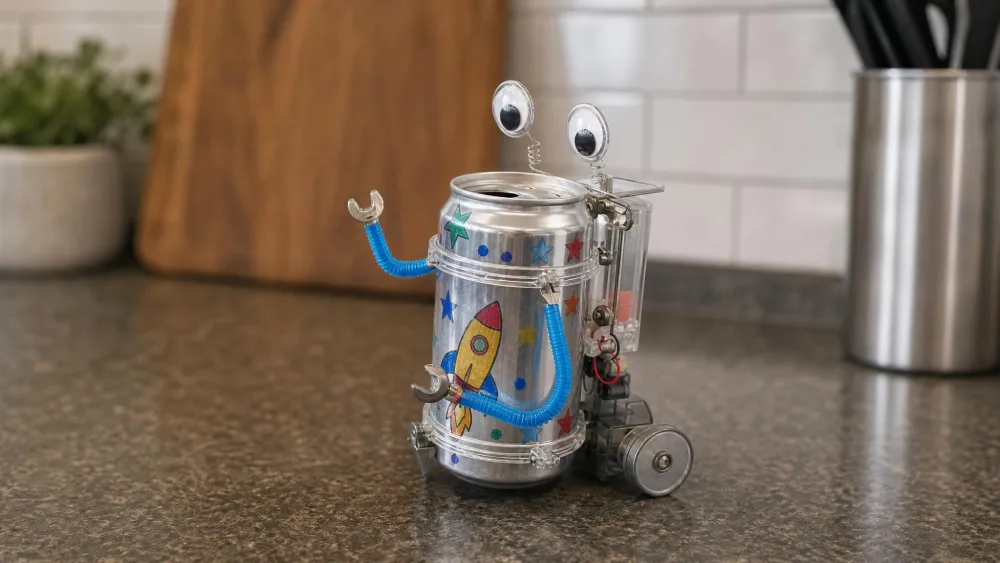
5. 4M Tin Can Robot: Best Budget Robot Kit Under $20
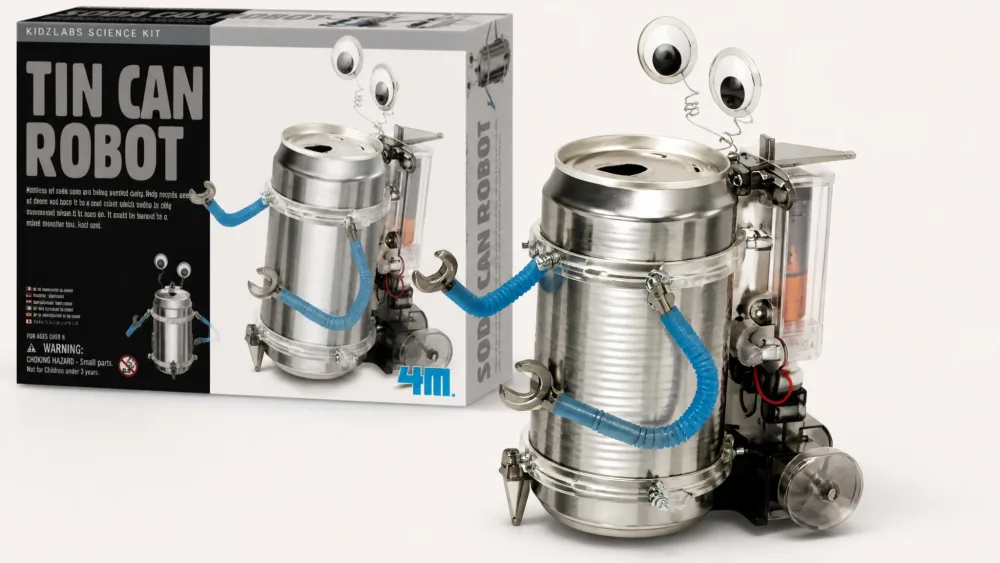
Start with what this one cannot do: there is nothing to program, nothing to control, and one thing it does once it is finished. Then look at the price. The 4M Tin Can Robot is $10.99 on Amazon, the cheapest thing here worth buying, and it earns the budget pick designation on that alone. Rated ages 8 and up, it turns an empty soda can you supply into a vibrating walking robot with googly eyes and straw arms. What sells it to kids is the decorating step, often the favourite part, and carrying the result into school for show and tell.
The screws and nuts are too small for a five-year-old's fingers, so an adult ends up driving nearly all of them, and the instruction sheet is mostly diagrams with no written steps. Build time runs roughly 30 minutes to an hour, and afterwards the appeal fades. It runs on 2 AAA batteries, though the requirement differs between listing revisions. Buy it as a one-afternoon project and it is the best value under $20 on this list; buy it as a lasting toy and it will disappoint.
Pros
- Around $11, with no ongoing costs
- Recycling and decorating steps kids enjoy
- Clear mechanical lesson in under an hour
Cons
- Tiny screws need adult hands
- Diagram-only instructions with no written steps
- No programming and little replay value
6. ELEGOO UNO R3 Smart Robot Car: Best Arduino Kit for Teens
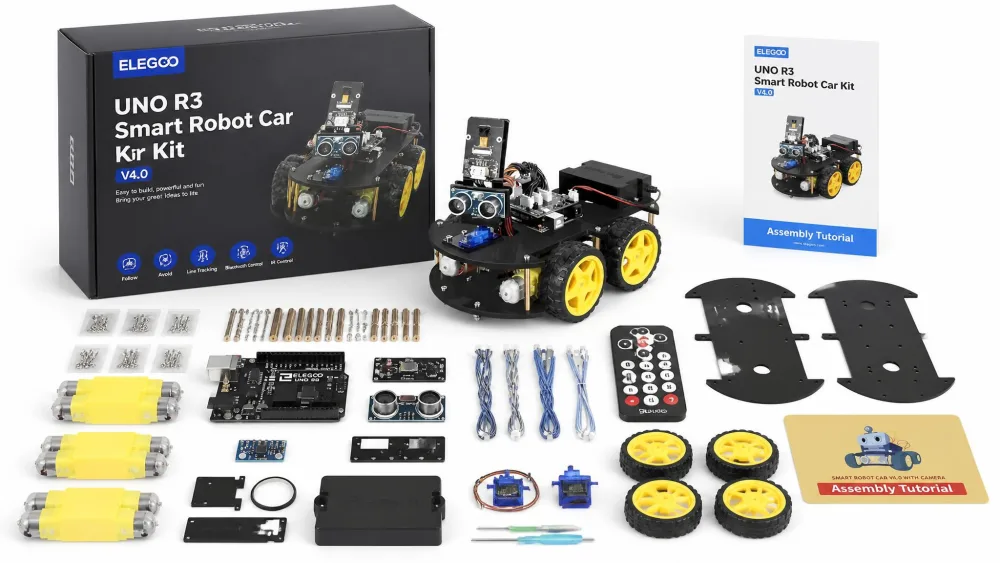
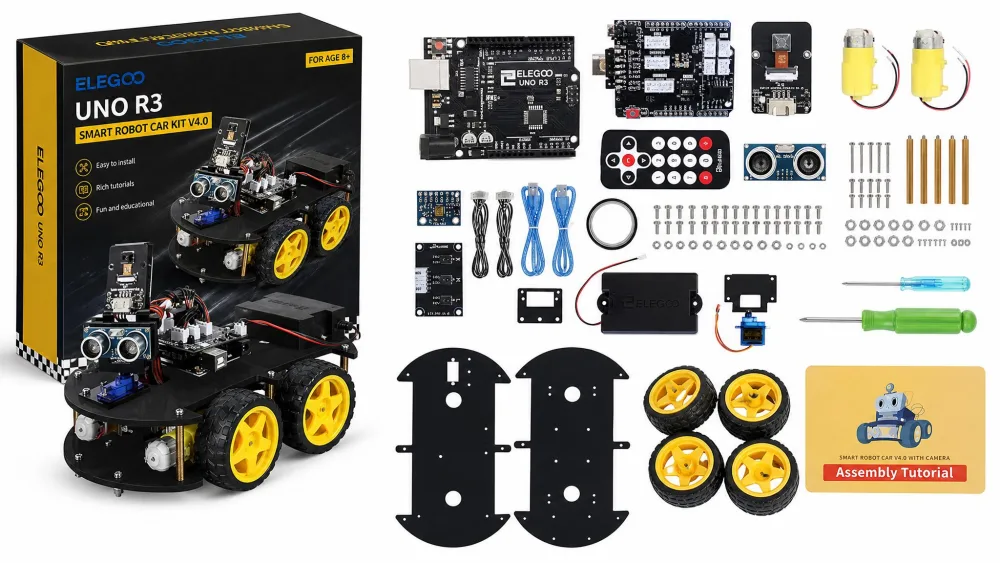
If the Tin Can Robot is an afternoon, the ELEGOO UNO R3 Smart Robot Car Kit V4 is a project, and it is the only pick that skips blocks entirely. Programming is text-based C/C++ in the Arduino IDE from the start, and the box holds 24 kinds of module parts, including an FPV camera, line tracking and ultrasonic obstacle avoidance.
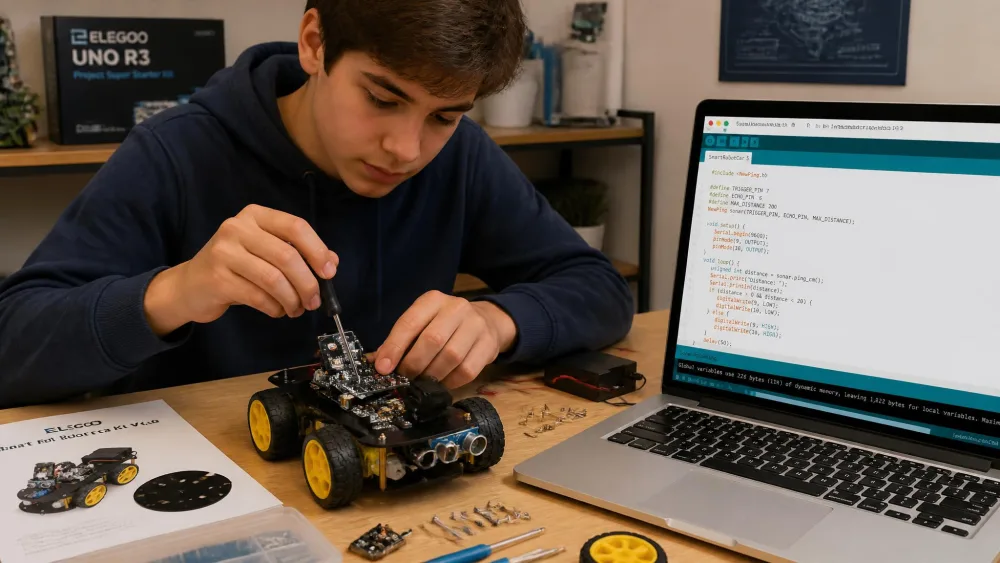
Our nine-year-old and our twelve-year-old each built one, and both of them mounted a base plate the wrong way round, because the two plates are near-symmetrical and the screw lengths vary between steps. The nine-year-old got most of the way to a rolling chassis before the motor wires came out on the wrong side and the whole lower deck had to come apart again. An adult glancing at each step would have caught it in seconds. Our thirteen-year-old, who had done this sort of thing before, finished his in a few hours and spent the rest of the evening changing the obstacle-avoidance thresholds in the sketch rather than driving it.
The listing states an applicable age of 8+, which sits well below the age this actually works at, since the kit assumes basic electronics knowledge. Treat it as a 12-and-up project. The frustrations are software rather than hardware: pre-loaded factory code and IDE compiler errors cause most stuck moments.
Pros
- Real Arduino C/C++ on real hardware for about $80
- 24 module types including FPV camera and line tracking
- Keyed connectors prevent most wiring errors
Cons
- The 8+ age label is badly optimistic
- Compiler errors and factory code cause most stalls
- Needs pliers or tweezers that are not included
Bottom Line
For a teenager who wants to write code that moves something, this is the most kit for the money on the list.
7. UBTECH Jimu Robot Dragon: Best for Animatronics and Movement
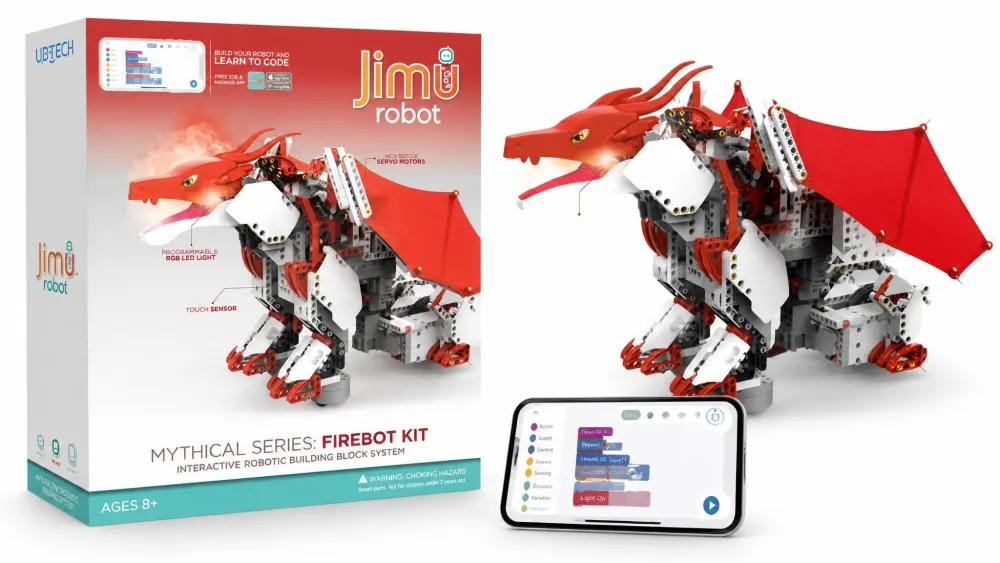
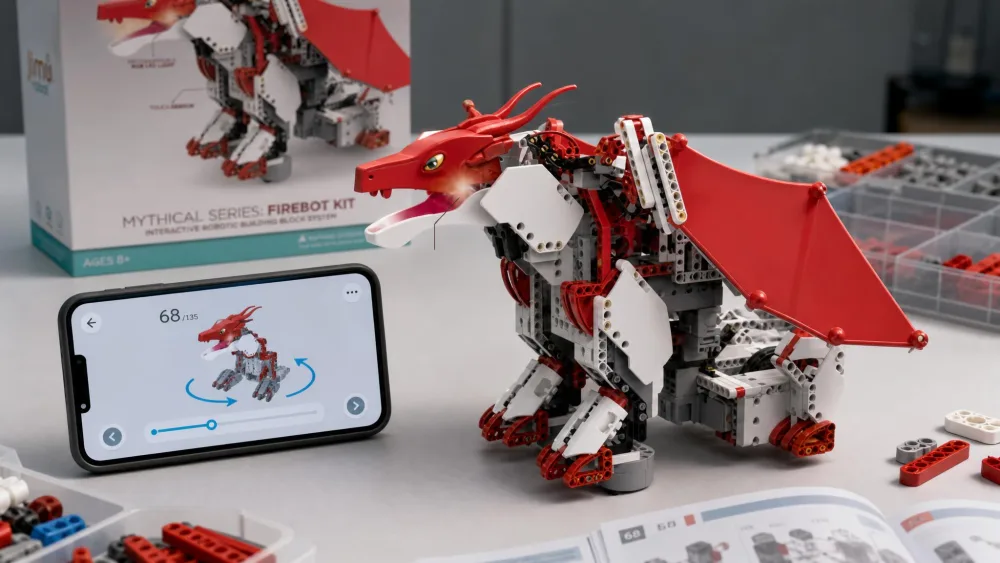
The ELEGOO car rewards a child who wants to write code; the dragon rewards one who wants to watch something move. It ships as the JIMU Robot Mythical Series FireBot Kit, a 606-piece build with servo-driven articulated wings and head, a programmable LED snout light and a chest touch sensor. Coding is Blockly block-based work in the free JIMU app.
The wing assembly is where our seven-year-old lost an hour. The picture step showing how the servo arm seats is ambiguous, he read it the plausible way rather than the correct way, and the wing would not fold once the head went on, so the whole section came apart and went back together. What kept him at the table through that was the instructions themselves: steps arrive as 3D, 360-degree views he could rotate with a finger until he could see exactly where the part belonged. He went back to it across three evenings without being asked.
The build runs roughly 3 to 5 hours, and rework is the main frustration. The delicate servo connectors are the vulnerable point, the finished dragon comes apart at the joints during play, and the app is the weak link overall.
Pros
- 606 pieces producing genuine articulated movement
- Rotatable 3D build instructions inside the app
- Blockly coding tied to a touch sensor and LEDs
Cons
- Three to five hours of building with frequent rework
- Joints separate during play
- App reliability and long-term support are uncertain
Bottom Line
The FireBot suits a child who cares about how a robot moves rather than how far it drives.
8. Snap Circuits Jr. SC-100: Best Screen-Free Electronics Kit
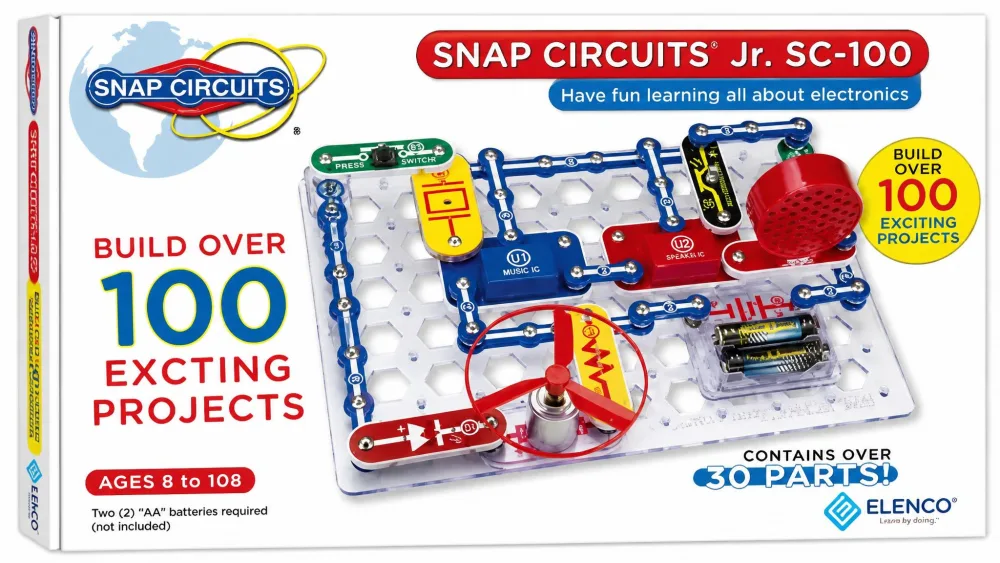
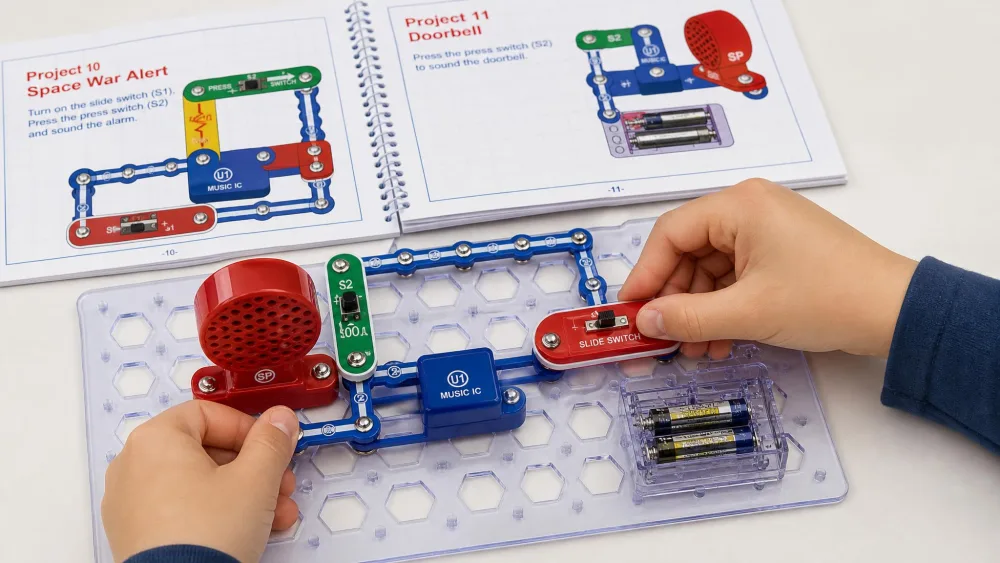
Snap Circuits Jr. SC-100 is the only pick here that never moves, but it teaches the electronics every robot depends on. It offers over 100 electronic projects from 28 snap-together components, rated ages 8 and up, with no soldering and no tools required.
The best hour it gave us had two kids on the same grid with no adult involved at all. Our six-year-old worked the early circuits, snapping a slide switch and a lamp into place from the picture in the manual, while our thirteen-year-old sat at the other end of the table on the later projects with the music integrated circuit and the speaker. Neither of them asked for a word to be read aloud, because the diagrams carry the whole instruction. That gap between a six-year-old and a thirteen-year-old is why this set is still out on our shelf and why the larger kits get bought to add to it.
Individual components can be fragile under rough handling, though Elenco's replacement-part service is a saving grace.
Pros
- Over 100 projects from 28 parts, no tools needed
- Kids follow the manual without adult help
- Parts cross over to every larger Snap Circuits set
Cons
- Individual components crack under rough handling
- No moving robot at the end of it
- Battery requirement is not stated on the listing
Bottom Line
Snap Circuits Jr. is the best screen-free electronics kit for kids and the one most likely to still be in use two years from now.
9. Sphero BOLT: Best for Classrooms and Advanced Coding
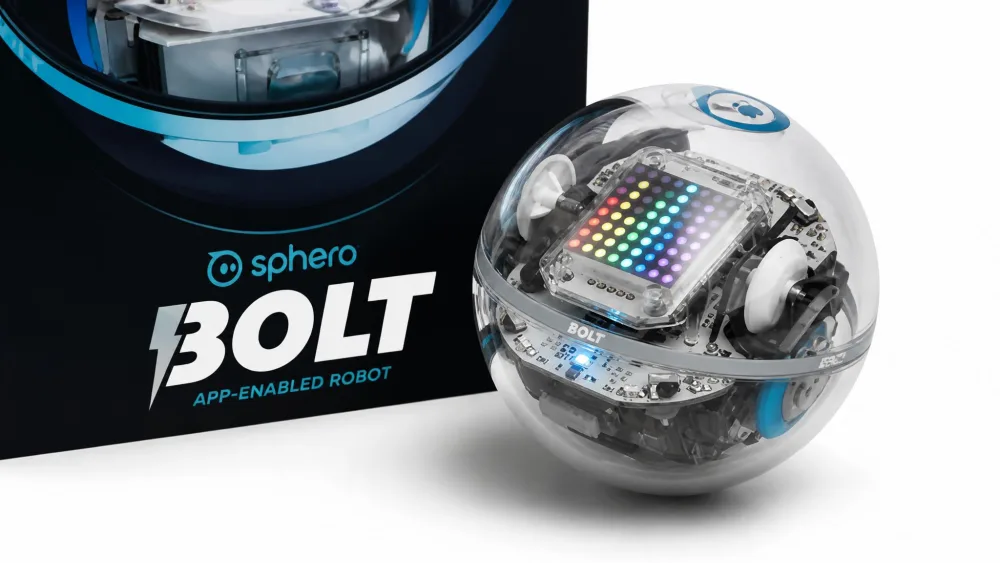
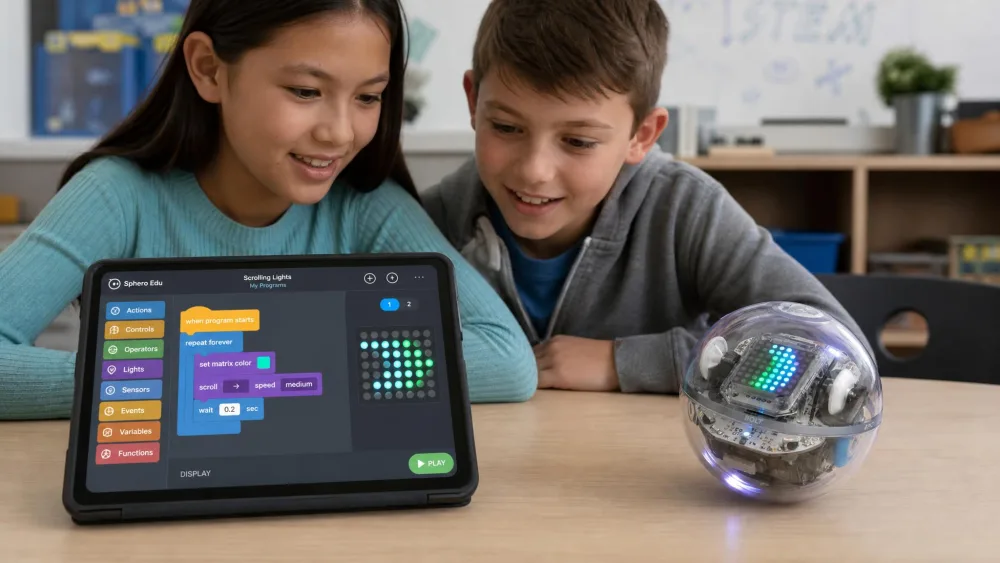
A teenager at our homeschool co-op pulled ahead of everyone else in the group for one unglamorous reason: he had his own BOLT at home and practised on it between sessions. The Sphero BOLT is the Mini's serious older sibling, rated ages 8 and up, with three coding paths in Sphero Edu, Draw, Blocks, and text in Python or JavaScript, plus a programmable 8x8 LED matrix that turns abstract variables into something a child can watch scroll across the shell. It runs 4+ hours of play with inductive charging, and BOLTs communicate over infrared, so two children can write programs that interact.
The first pairing can be stubborn, but once connected the block code is simple enough for a twelve-year-old to start writing her own programs. The shell scratches badly on hard flooring, and a silicone cover fixes that at the cost of pulling it off again every time the ball goes on the charging cradle. For a classroom, a co-op, or a child who has already outgrown block coding, that is a small price for the only robot here that teaches Python without a build phase.
Pros
- Draw, block, Python and JavaScript in one robot
- 8x8 LED matrix makes code output visible
- BOLTs communicate with each other for group work
Cons
- $150-179, the second most expensive pick
- Shell scratches without a cover you must remove to charge
- Nothing to build, which loses some kids
10. LEGO Education SPIKE Prime: Best Premium Kit
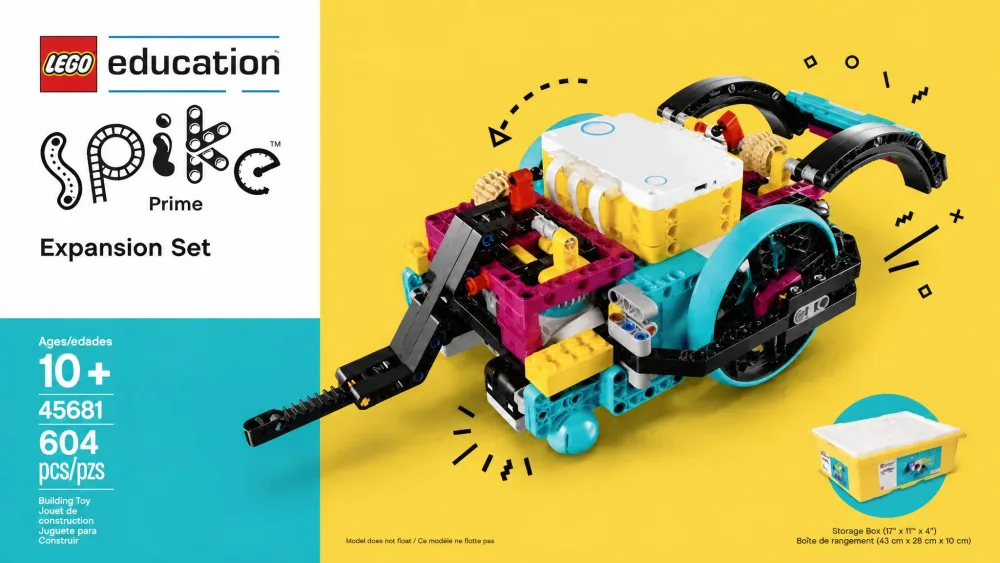
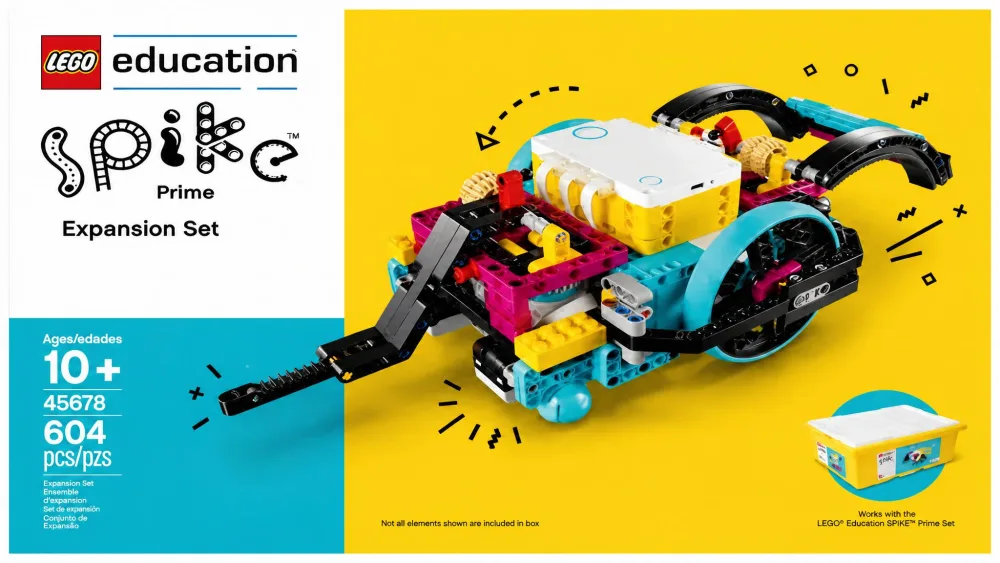
If the Sphero BOLT is the most capable robot here that needs no building, LEGO Education SPIKE Prime, set 45678, is the most capable kit here full stop, and the most expensive by a wide margin at about $360. It sits last on this list for one reason only, which is that LEGO has retired it.
Watch outLEGO has retired SPIKE Prime set 45678, and sales ended on 30 June 2026. Anything you find now is remaining reseller stock, so price and availability depend entirely on who still has boxes on a shelf. The SPIKE App and the sets already in homes and classrooms keep working, so an existing set is not stranded.
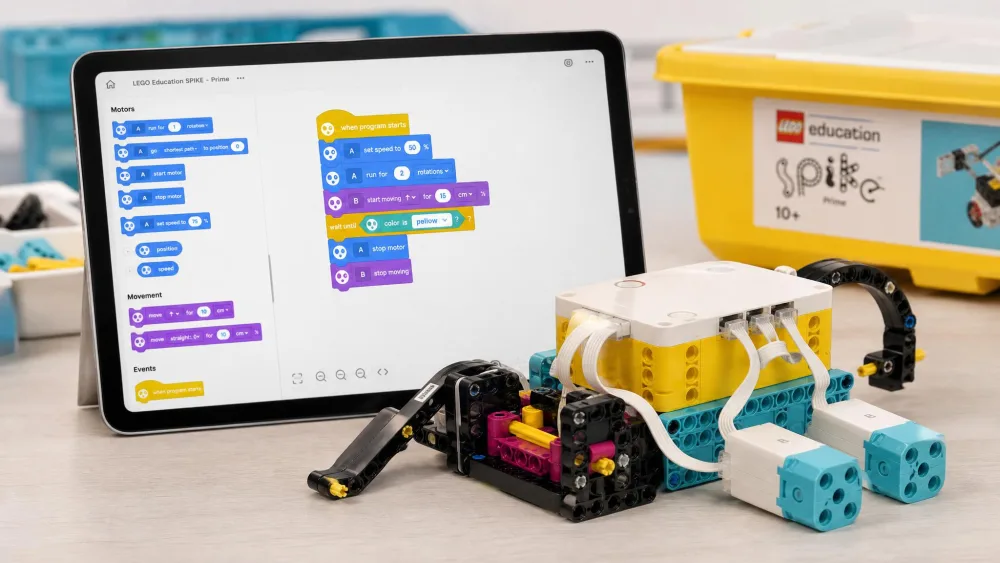
You get 528 pieces, a multi-port programmable Hub, 3 motors, 3 sensors and Technic elements. It is aimed at ages 10+, roughly grades 6-8. The SPIKE App is built on the Scratch block language with a Python path for older students, and the directions, videos and lessons all live inside the app.
That matters at home, because a parent with no coding background can sit alongside and help. Components survive falls from a table and hold up under heavy repeated use, which is part of why a retired set is still worth owning rather than avoiding. The barrier used to be price, which is why most families bought it through a co-op or school. Now the barrier is finding one at all, and reseller pricing on a discontinued education set moves in both directions, so check what a seller is asking against the roughly $360 it carried when LEGO was still selling it.
Pros
- Hub, 3 motors and 3 sensors in a durable system
- Scratch-based blocks with a real Python progression
- Lessons and build videos built into the app
Cons
- Retired by LEGO, with sales ended mid-2026
- About $360 when new, the most expensive pick by far
- Stock and reseller pricing are now unpredictable
Bottom Line
SPIKE Prime is still the most capable kit on this list, and it keeps the best premium kit designation on merit, but LEGO retired it in mid-2026. Buy it only if you find remaining stock at a sensible price and robotics is going to be a multi-year pursuit; otherwise the mBot and Sphero BOLT are the picks that are still in production.
Robot Kit Comparison Chart: All 10 Kits Side by Side
| Kit | Age range | Price band | Coding type | Build time / pieces | Best for |
|---|---|---|---|---|---|
| Makeblock mBot | 8-12 | $70-90 | Block (mBlock/Scratch) to Arduino | 15 min claimed, ~1 hr in practice | Best overall |
| Sphero Mini | 8+ | $50 | Draw, block, JavaScript | No assembly | Learning to code |
| Botley the Coding Robot | 5+ | $65-96 | None on screen; remote sequences | 77 pieces (78 on 2.0) | Ages 5-7 |
| Sillbird 12-in-1 Solar | 8-13 | $20 | None | 190 parts, 12 models | Screen-free solar |
| 4M Tin Can Robot | 8+ | $11-23 | None | Roughly 30-60 minutes | Budget pick under $20 |
| ELEGOO UNO R3 Smart Robot Car V4 | Listed 8+, better at 12+ | $80 | Text (Arduino C/C++) | 24 module parts, a few hrs | Arduino for teens |
| UBTECH Jimu Mythical FireBot | 8+ | $88-130 | Block (Blockly, JIMU app) | 606 pieces, 3-5 hrs | Animatronics |
| Snap Circuits Jr. SC-100 | 8+ | $30 | None | 28 parts, 100+ projects | Screen-free electronics |
| Sphero BOLT | 8+ | $150-179 | Draw, block, Python, JavaScript | No assembly | Classrooms, advanced coding |
| LEGO Education SPIKE Prime (retired) | 10+ | About $360, reseller-dependent | Block (SPIKE App) to Python | 528 pieces | Premium pick |
How to Choose a Robot Kit for Your Child
Match the Kit to Your Child's Age
Printed age labels are marketing, not measurement. The ELEGOO car says 8+ while every hands-on assessment we trust puts it at 12 and above. Botley's 5+ is honest, and so is the mBot's 8-12. Treat any text-coding kit as three or four years older than its box, and any kit with screws smaller than a pencil eraser as needing an adult regardless of age.
Coding Kits vs. No-Coding Build Kits
Roughly half the kits here involve no programming at all, and that is a legitimate choice rather than a lesser one. The Sillbird solar robot, the Tin Can Robot and Snap Circuits teach mechanics and electricity, which is the layer underneath the code. The rest run on Scratch, MIT's block-based coding language, or something modelled on it, before opening a text path. If your child has never built anything physical, start with a no-code kit; if they build constantly already, go straight to blocks.
Assembly Difficulty and How Much Help They'll Need
Ask one question: who is holding the screwdriver? On the Tin Can Robot the screws are too small for young fingers, on the Sillbird kit the gearbox needs real adult help, and on the ELEGOO car near-identical base plates cause mistakes without someone checking. Only Snap Circuits and the two Sphero robots are genuinely hands-off for a parent.
Watch outKits with tiny screws, sprue-trimming steps and loose AAA cells do not belong on the floor of a house with a toddler in it. Botley alone needs 5 AAA batteries fitted behind screws, and small solar-kit connector pegs snap off into pieces a young child can swallow. Build these at a table.
Educational Value: What They Actually Learn
Skip the word learning on the box and ask what skill is being practised. Screen-free kits build fine motor skills and mechanical reasoning. Block-coding robots build sequencing, loops and debugging, which are problem-solving skills that transfer to any language later. Text-coding kits add syntax and the patience to read a compiler error.
Budget: What You Get at Each Price Point
Under $30 buys a build-once mechanical kit with no programming. Around $50 to $90 is the sweet spot, covering the Sphero Mini, the mBot, the ELEGOO car and the FireBot, and every one of those teaches real coding. Above $150 you are paying for durability, lesson content and classroom features rather than more fun per hour. The one caution at the top of the range is that SPIKE Prime, the kit that used to define the $360 tier, has been retired, so the practical ceiling for a kit you can still buy new is the Sphero BOLT at $150 to $179.
The most expensive kit on this list is not the one that gets played with most. That is almost always the $30 one that never needs charging.
Safety, Durability, and Replacement Parts
Build quality separated these kits more sharply than price did. The mBot's metal chassis and SPIKE Prime's components both survive falls from a table, while the Sillbird kit cracked during testing and the Sphero Mini will not survive being stepped on. Ask about replacement parts before you buy: Elenco's service for Snap Circuits is why families stay with that system for years, whereas a broken servo connector on a Jimu kit is much harder to solve. A retired system is worth an extra thought here too, because spare elements for SPIKE Prime now depend on resellers rather than on LEGO's own education channel. On power, Botley needs 5 AAA cells you supply, the Tin Can Robot takes 2 AAA, the Sillbird runs on sunlight or a flashlight, and the Sphero robots and ELEGOO car charge over USB.
Robot Kits by Age Group
Best Robot Kits for Ages 5-7
At this age you want screen-free and physical. Botley is the clear pick, because the whole program lives on a handheld remote and no reading is needed. Snap Circuits Jr. also works from about six with a parent nearby. Avoid anything with a build phase measured in hours.
Best Robot Kits for Ages 8-12
This is the widest and best-served band. The mBot is the strongest single purchase, and the Sphero Mini is the cheapest genuine coding entry. For a child who prefers building to coding, the FireBot or the Sillbird solar kit fit better.
Best Robot Kits for Teens (13+)
Teenagers need something that does not feel like a toy. The ELEGOO UNO R3 car is the pick, because it drops them into the Arduino IDE with real C/C++ and no training wheels. Sphero BOLT suits a teen who wants Python without a long build. SPIKE Prime is the kit for one working toward competition, with the caveat that LEGO retired it in mid-2026, so buying one now means hunting remaining reseller stock rather than ordering it new.
What to Buy After Their First Kit
The usual next step is not another kit but a team. FIRST LEGO League is the competitive robotics programme most kids move into after a first kit, and it turns solo building into design, testing and presenting alongside other children. If a team is not an option, expansion is cheaper: the mBot connects to 500+ Makeblock parts, Snap Circuits sets combine, and the mBot2 adds Python to the same block-coding habits. Monthly subscription boxes such as KiwiCo and CrunchLabs deliver a new project each month instead of one large kit, though the recurring cost adds up against a single purchase. KiwiCo crates land in the region of $18.50 to $24 a month, with the cheaper end reserved for families who prepay a year and the top end for a rolling single month; CrunchLabs Build Box sits higher, roughly $27 to $33 a month on the same annual-versus-monthly split. Both companies price by plan length and run frequent introductory discounts, so the figure your household actually pays depends on the term you commit to.
Frequently Asked Questions
Do robot kits teach real coding?
Several do. The Sphero Mini and BOLT both offer text coding in JavaScript, and BOLT adds Python. The Makeblock mBot moves from mBlock blocks to Arduino C, and the ELEGOO car is Arduino C/C++ from the first minute. Block-coding kits teach real concepts too, because loops, conditionals and debugging are the same ideas whatever the syntax.
What tools and extras do I need that are not in the box?
More than the packaging admits. Botley needs a Phillips screwdriver and 5 AAA batteries before the first session. The Tin Can Robot needs a small cross-head screwdriver, 2 AAA cells and an empty soda can you supply. The ELEGOO car goes much better with pliers or tweezers, which are not included, and the Sillbird kit wants a pair of clippers for trimming parts off the sprue. Budget an extra ten minutes and a trip to the drawer before any of these can start.
Is LEGO Education SPIKE Prime still available?
Not from LEGO. The set 45678 product page is still up but marked retired, and sales ended on 30 June 2026, so what remains is reseller stock at reseller prices. The good news for anyone who already owns one is that the SPIKE App and existing sets keep working, so a set bought before the cutoff is not stranded. If you want a comparable coding path from a kit still in production, the Sphero BOLT covers Python and the mBot covers the block-to-text route for far less money.
Do robot kits have ongoing costs after the first purchase?
Some do. Battery-driven kits keep eating AAA cells, so rechargeables pay for themselves quickly. Snap Circuits and the mBot both invite expansion sets, which is the cheapest way to extend a kit you already like. Replacement parts are the other line item, and they vary enormously: Elenco will send Snap Circuits components, while a snapped servo connector on a Jimu kit is much harder to replace. Subscription boxes are a different model again, trading one purchase for a monthly charge.
What happens if the app stops being supported?
This is the real risk with app-driven robots, and it is the reason we score the coding path rather than the app. The Jimu line is the cautionary example, where older kits have lost app support and some parents get stopped at a privacy-policy screen. Kits whose software is a standard platform rather than a proprietary app age better, which is why the ELEGOO car and the mBot's Arduino mode will still work years from now. Screen-free kits like Botley and Snap Circuits cannot fail this way at all.
Are robot kits worth the money?
The ones that keep being used are. The deciding factor is not price but whether the kit does something after it is built. Kits with nothing to control lose their appeal once assembly finishes. Kits with a coding app behind them keep earning their price for years.
Do these robots need a home internet connection?
Mostly no, but they need something. The Sphero robots, the mBot and the FireBot all talk to a phone or tablet over Bluetooth once the app is installed, so the connection is local rather than online, though you need internet to download the app in the first place. The ELEGOO car needs a computer with the Arduino IDE on it. Botley, Snap Circuits, the Tin Can Robot and the Sillbird kit need nothing at all, which is worth knowing if your household has patchy service.
Which robot kit is best for a 7-year-old?
Botley if they have not coded before, since it needs no reading. If they already build confidently, the mBot works at seven with an adult doing the fiddlier screws, and it will still be useful at eleven.
Final Verdict: Which Robot Kit Should You Buy?
Most families should buy the Makeblock mBot. It is the only kit here that a child can build at seven, code in blocks at eight, and reprogram in Arduino at eleven, all on the same robot. If your child is younger than eight, buy Botley instead. If they are a teenager who wants to write code rather than follow instructions, buy the ELEGOO car. If the budget is tight, Snap Circuits Jr. will outlast almost everything on this list. And if you had SPIKE Prime in mind as the serious long-term option, check availability first, because LEGO retired the set in mid-2026 and the Sphero BOLT is now the most capable kit you can still order new.